

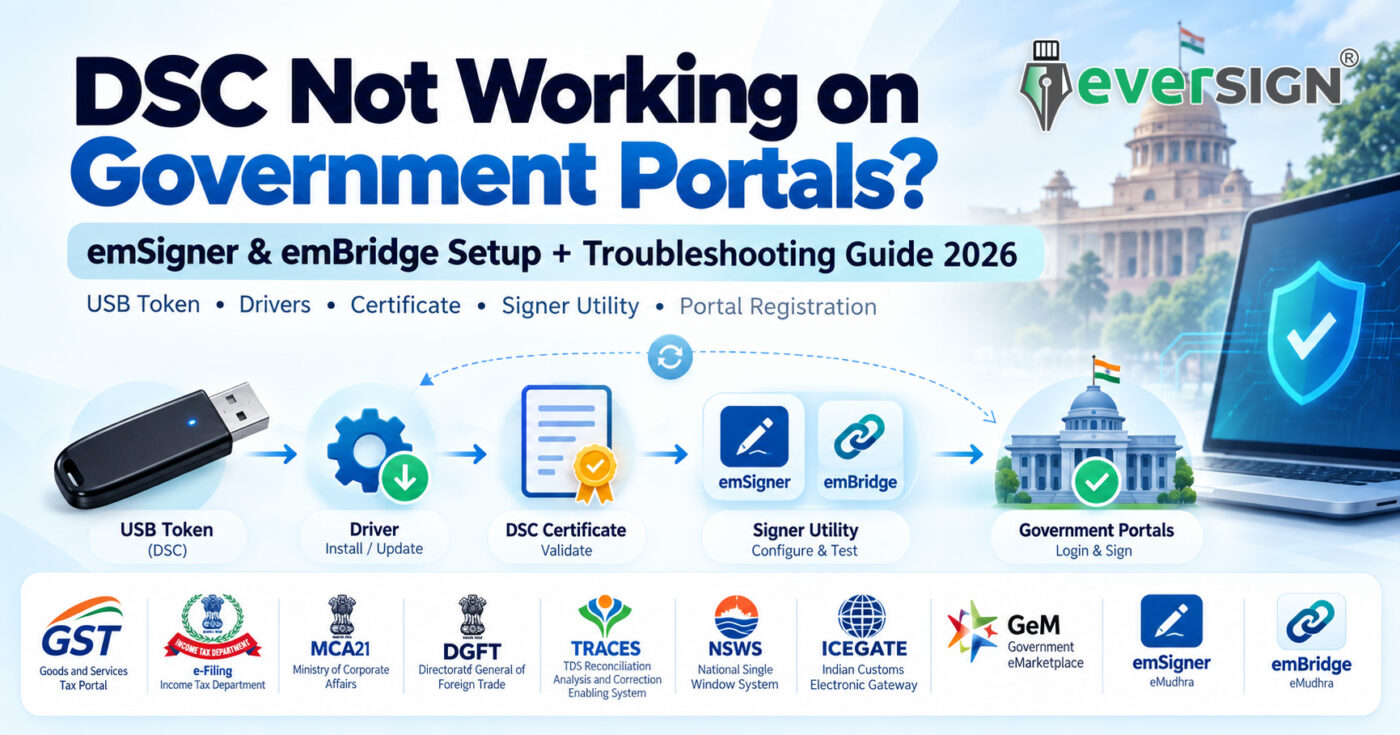
Your Digital Signature Certificate works inside the USB token—but the Government portal cannot see it.
Or perhaps:
- the USB token is detected, but the certificate does not appear;
- emSigner says the service is not running;
- emBridge is installed, but the portal still does not detect the DSC;
- the DSC worked before renewal but no longer works;
- a new FIPS 140-3 token works on one portal but not another;
- GST cannot see the newly issued DSC;
- MCA freezes when you try to associate the DSC;
- Income Tax shows a signing or connection error;
- DGFT says the DSC token is not connected; or
- the DSC works on one Government portal but fails on another.
These problems can look similar, but they do not all have the same cause.
A DSC transaction normally depends on several separate layers working together:
USB Token → Token Driver/Middleware → DSC Certificate → emSigner/emBridge or Other Signing Utility → Browser/Local Service → Portal Registration/Association → Portal Validation
If any one of these layers fails, the Government portal may report that the DSC is missing, invalid, unavailable or unable to sign.
There is another important point users should understand in 2026:
There is no single universal emSigner or emBridge version for every Government portal.
The software required depends on the portal.
For example, GSTN introduced emSigner 3.3 in September 2026 for compatibility with newly issued USB DSC tokens. Income Tax currently provides emBridge through its DSC Management Utility. MCA21 V3 officially requires both emSigner and emBridge for DSC association. DGFT and the National Single Window System document the use of emBridge, while TRACES maintains its own WebSocket emSigner requirements. Other portals, including ICEGATE, use different signing utilities altogether.
This guide explains how to diagnose DSC problems correctly across major Indian Government portals—without repeatedly reinstalling random software and hoping that the problem disappears.
Quick Diagnosis: Where Is Your DSC Problem?
Before uninstalling anything, identify where the DSC chain is breaking.
| What You See | First Thing to Check |
|---|---|
| Computer does not detect USB token | USB port, token hardware, token driver |
| Token manager does not detect token | Correct token middleware/driver |
| Token is visible but DSC is missing inside it | Certificate download/token issue |
| DSC is visible in token software but portal cannot see it | emSigner/emBridge/portal signing utility |
| “Service not running”, “server connection” or WebSocket error | Local signing service |
| DSC appears but signing fails | PIN, certificate validity, PAN/profile, portal registration |
| Renewed DSC not recognised | Re-register or re-associate the new DSC |
| New FIPS 140-3 token not visible on GST | Check GST emSigner 3.3 |
| DSC works on GST but fails on MCA | Check MCA emSigner + emBridge and DSC association |
| DSC works on one portal but not another | Check the failing portal’s own utility and registration |
| PAN/authorised signatory mismatch | Portal profile and DSC identity |
| Wrong PIN entered repeatedly | Stop trying; the token can become blocked |
| DSC expired | Renew DSC and update/register it again where required |
The most important troubleshooting rule is:
First prove that the token and certificate work locally. Only then troubleshoot the Government portal.
What Are emSigner and emBridge?
emSigner and emBridge are local software components used by certain web applications to communicate with Digital Signature Certificates stored in USB cryptographic tokens.
A web browser cannot simply access the protected private key inside a cryptographic USB token directly.
A local signing component acts as a bridge between:
- the Government website;
- your browser;
- the cryptographic USB token;
- the token’s middleware or driver; and
- the certificate used to create the digital signature.
The exact architecture varies by portal.
Is emSigner the Same as emBridge?
Not exactly.
They perform related functions in DSC workflows, but they should not be treated as universally interchangeable.
Some portals prescribe emSigner.
Some prescribe emBridge.
MCA21 V3 officially instructs users to install both.
Income Tax’s own DSC guidance uses the general term emSigner while currently directing users to its DSC Management Utility / emBridge download.
Importantly, the Income Tax Department also states that different versions of emSigner are suitable for different websites.
Income Tax – Register Digital Signature Certificate Guidance
Do Not Install GST emSigner 3.3 for Every Government Portal
GST’s emSigner 3.3 update is a GSTN-specific development.
It should not automatically be treated as the correct utility for:
- MCA21;
- Income Tax;
- DGFT;
- TRACES;
- NSWS;
- ICEGATE;
- Central Public Procurement Portal;
- GeM; or
- every state eTendering portal.
Always follow the instructions of the portal on which you actually want to use the DSC.
Which DSC Utility Does Each Government Portal Use?
The practical position across major portals is broadly as follows:
| Government Portal | DSC Utility / Method | Important Point |
|---|---|---|
| GST Portal | emSigner 3.3 for newly issued tokens from 21 Sept 2026 | GSTN-specific update |
| Income Tax e-Filing | DSC Management Utility – emBridge | DSC may need registration/re-registration |
| MCA21 V3 | emSigner + emBridge | MCA instructs users to install and run both |
| DGFT | emBridge | Token driver + emBridge required |
| TRACES | TRACES WebSocket emSigner | Portal-specific WebSocket requirements |
| NSWS | emBridge | Acts as connector between NSWS and DSC |
| ICEGATE | ICEGATE signer utility | Not the GST emSigner setup |
| CPPP / NIC eProcurement | Portal-specific DSC workflow | Follow current eProcurement instructions |
| GeM | Portal-specific DSC/eSign workflow | Do not assume GST emSigner is required |
This distinction explains why a DSC can work perfectly on one Government website and fail on another.
Before Troubleshooting Any Portal: Check These 8 Things
1. Check Whether the USB Token Is Physically Detected
Insert the DSC token directly into the computer.
If possible:
- try another USB port;
- avoid an unreliable USB hub;
- wait a few seconds after insertion; and
- open the token’s own management software.
If the token-management software itself cannot detect the device, emSigner or emBridge is probably not your first problem.
2. Make Sure the Correct Token Driver Is Installed
Every USB cryptographic token requires appropriate middleware.
Common token families include:
- HyperPKI HYP2003;
- Watchdata ProxKey; and
- other CCA/CA-supported cryptographic devices.
Use software intended for the exact token model and version.
An old or unrelated token driver can create detection problems even where the physical token itself is functioning correctly.
3. Verify That the DSC Is Actually Inside the Token
Open the token-management utility.
You should be able to see the certificate.
Check:
- subscriber name;
- certificate validity;
- issuing Certifying Authority; and
- the intended signing certificate.
If the DSC itself is not visible inside the token utility, reinstalling emSigner will not put the certificate back into the token.
4. Check the DSC Expiry Date
An expired DSC can still physically remain inside the USB token.
That does not mean a portal will accept it.
Income Tax, for example, requires DSC registration to be updated when the registered certificate expires or is replaced.
NIC eProcurement also requires users to enrol the renewed or replacement DSC as applicable.
5. Check DSC Holder, PAN and Organisation Details
Many Government portals validate identity information in the DSC against the user, authorised signatory or organisation selected on the portal.
A technically valid DSC can therefore fail if the wrong signatory is selected.
For example:
Company account → Authorised Signatory A selected → DSC of Authorised Signatory B inserted
The USB token may work perfectly, but the portal can still reject the transaction because the identity does not match.
6. Check Whether the Portal Requires DSC Registration or Association
A certificate being present in your USB token does not automatically register it with every Government portal.
Examples include:
- GST — Register/Update DSC;
- Income Tax — Register DSC;
- MCA — Associate DSC;
- DGFT — Register Digital Signature Token;
- eProcurement — map/enrol DSC against the user.
After DSC renewal, you may therefore have fully working hardware but still need to register or associate the renewed certificate again.
7. Check the Signing Utility Required by That Portal
Determine whether the target portal currently requires:
- emSigner;
- emBridge;
- both;
- a WebSocket signer;
- another signer utility; or
- another portal-specific mechanism.
Do not assume one utility works universally.
8. Check Whether Your Recent Renewal Also Changed the USB Token
If you recently renewed the DSC, determine whether:
- only the certificate changed;
- you received a new USB token; or
- you moved from an older FIPS 140-2 device to a current FIPS 140-3 token.
This is particularly important for GST after the September 2026 emSigner update.
GST Portal: emSigner 3.3 and DSC Troubleshooting
GST has undergone an important DSC utility update.
GSTN issued an Advisory on use of version 3.3 of emSigner in September 2026. The newer version addresses compatibility with USB DSC tokens issued on or after 21 September 2026.
Who Needs GST emSigner 3.3?
There are two main situations.
Existing DSC and Existing Token Still Working
If you already had a valid DSC and existing USB token and the setup continues working normally, you generally do not need to disturb a working configuration solely because the FIPS transition date has passed.
If:
- signing starts failing; or
- the DSC no longer appears for selection despite the correct token driver being installed,
check the current GST emSigner setup and upgrade to the current version where required.
New USB Token Issued On or After 21 September 2026
If you received a new USB token on or after 21 September 2026 because of:
- a fresh DSC; or
- renewal of a DSC into a new dongle,
the current GST setup should use emSigner 3.3.
GST emSigner 3.3 System Requirements
GSTN’s September 2026 advisory specifies requirements for the updated environment.
Operating System / Hardware
The advisory includes support requirements relating to:
- Windows;
- Linux;
- macOS;
- 64-bit operating systems;
- system memory; and
- available storage.
Java
The advisory also specifies the Java environment required for the GST emSigner setup.
Because these technical requirements can change, obtain the current installer and current requirements directly from GST rather than relying on an old installer or third-party download.
Download emSigner From the Official GST Portal
GST Error: Digital Signature Certificate Missing
If GST reports that the DSC is missing, first confirm:
- the token is connected;
- the correct token driver is installed;
- the certificate appears in the token-management utility;
- the DSC is valid; and
- the correct signing certificate is being selected.
GST also differentiates signing certificates from certificates intended for other key usages.
GST – Official DSC Troubleshooting Guide
GST Error: Failed to Establish Connection to the Server
This usually points towards the local signer service rather than the DSC certificate itself.
Check whether:
- emSigner is running;
- the correct GST emSigner version is installed;
- the service has been restarted;
- required permissions are available; and
- browser-to-local-service communication is working.
Do not repeatedly reinstall the USB token driver if the token itself is already detected properly.
GST Error: PAN Verification Failed
If GST reports a PAN verification problem, check whether the DSC belongs to the authorised signatory currently selected on GST.
The token may work normally while the portal rejects the DSC because the identity in the certificate does not match the selected signatory.
GST Error: DSC Is Not Registered at the Portal
A valid DSC may still need to be registered or updated on GST.
Use the portal’s Register / Update DSC functionality and associate the appropriate certificate.
This is particularly relevant after renewal or replacement of the DSC.
GST WebSocket or Localhost Problems
emSigner communicates locally between the browser and the signer service running on your computer.
If that local connection is blocked, the portal may fail even where:
- the token is present;
- the driver works; and
- the certificate is valid.
Check the official GST troubleshooting instructions rather than disabling firewall or browser security controls broadly.
Income Tax e-Filing: emBridge / DSC Management Utility
The Income Tax e-Filing Portal currently provides a dedicated DSC Management Utility, using emBridge.
Income Tax DSC Management Utility / emBridge Downloads
The current download area provides platform-specific utility packages.
How to Register a DSC on Income Tax
The normal workflow is:
- Log in to the e-Filing portal.
- Open My Profile.
- Select Register DSC.
- Make sure the required DSC utility is installed.
- Select the provider.
- Select the appropriate certificate.
- Enter the token/provider password.
- Sign and complete the registration.
The portal also supports re-registering or updating the DSC where the existing registered certificate expires or is replaced.
Income Tax – Official Register DSC Guide
Income Tax Error: Something Went Wrong
Where the Income Tax DSC workflow fails, check:
- whether the latest DSC Management Utility/emBridge is installed;
- whether the utility service is running;
- whether the token is detected locally;
- whether the certificate is valid;
- whether the DSC is registered against the correct user; and
- whether the registered DSC has recently expired or been replaced.
If an old emBridge installation is causing problems, use the latest version provided through the official Income Tax download page.
Income Tax: Renewed DSC Not Working
A renewed certificate is not necessarily recognised automatically just because it resides in the same physical token.
If the DSC registered with Income Tax has expired or has been replaced, use the Register DSC workflow to register the current certificate again.
In other words:
New certificate inside USB token ≠ automatically updated on Income Tax.
Income Tax: DSC Already Registered
If Income Tax reports that the DSC is already registered, check:
- whether the DSC is already associated with the current user;
- whether it is registered against another user;
- whether PAN details match;
- whether you are using the appropriate taxpayer or organisation profile.
Do not reinstall token drivers for what is fundamentally an account-registration issue.
MCA21 V3: emSigner + emBridge
MCA21 V3 has its own requirements.
Official MCA DSC-registration instructions tell relevant users to install both emSigner and emBridge.
MCA21 V3 DSC Registration Guide (PDF)
MCA DSC Association FAQs (PDF)
MCA also requires the relevant user profile and role to be configured correctly before DSC association.
MCA21 V3: Basic DSC Association Checklist
Before associating the DSC:
- make sure the MCA account is configured under the appropriate Business User category;
- install emSigner;
- install emBridge;
- ensure both required services are running;
- connect the USB token;
- ensure the token and certificate are detected;
- open the DSC association workflow;
- select the correct certificate; and
- complete the association.
MCA: emSigner or emBridge Will Not Start
If one of the required applications will not start:
- confirm whether the correct version is installed;
- restart the application;
- use the MCA-prescribed troubleshooting steps;
- reinstall if required; and
- run with the necessary local permissions.
Because MCA requires both emSigner and emBridge, fixing only one component may not resolve the issue.
MCA: Associate DSC Screen Freezes
If the Associate DSC process freezes or does not proceed:
- verify that emSigner is running;
- verify that emBridge is running;
- check whether the token is connected;
- check whether the certificate appears locally;
- confirm the MCA user profile; and
- follow the specific association troubleshooting steps in MCA’s official FAQ.
MCA Error: Customer Already Exists
An error indicating that the customer already exists may relate to the existing MCA DSC association.
It can indicate that the certificate is already associated with the relevant user or that a conflicting association exists.
This is an MCA account-association issue, not necessarily a token-driver issue.
Renewed DSC on MCA: Do I Need to Associate It Again?
If a new certificate replaces the previous DSC, MCA provides a process for associating the new DSC.
Therefore, a renewal can require a portal-side association update even where:
- the USB token works;
- the certificate is valid; and
- emSigner/emBridge are functioning normally.
DGFT: emBridge + USB Token Driver
DGFT documents a different setup again.
Its Digital Signature Registration process requires:
- the appropriate USB token driver; and
- the required emBridge utility.
DGFT Digital Signature Registration Guide (PDF)
How to Register DSC on DGFT
The documented DGFT workflow broadly involves:
- logging in to DGFT;
- opening My Dashboard;
- selecting the Digital Signature Token registration option;
- ensuring token drivers are installed;
- ensuring emBridge is available and running;
- selecting Register New DSC;
- selecting the appropriate provider/certificate;
- entering the token password; and
- completing registration.
DGFT Error: DSC Token Is Not Connected
If DGFT says the DSC token is not connected, check in this order:
- remove and reinsert the token;
- confirm that the token-management software detects it;
- make sure the correct token driver is installed;
- confirm emBridge is installed;
- confirm emBridge is running; and
- retry the portal operation.
This is a good example of why troubleshooting should proceed:
hardware → driver → certificate → emBridge → portal
rather than reinstalling everything immediately.
DGFT: DSC Is Detected but Registration Still Fails
DGFT also validates information contained in the DSC against the IEC/user profile.
Depending on the entity type, this can involve:
- PAN;
- organisation information; and
- other profile data.
So:
Token detected successfully does not automatically mean DGFT registration will succeed.
If emBridge sees the certificate but DGFT rejects registration, check the certificate identity and DGFT profile information.
TRACES: WebSocket emSigner Is a Separate Setup
TRACES should not be treated as using the same setup as GST.
TRACES has its own WebSocket emSigner workflow and troubleshooting requirements.
TRACES DSC / WebSocket emSigner Troubleshooting FAQ
Follow the version and environment requirements currently published by TRACES rather than installing the GST emSigner package.
TRACES WebSocket emSigner Requirements
TRACES’ own documentation specifies requirements around:
- Java;
- WebSocket emSigner;
- administrator access;
- Internet connectivity;
- proxy configuration; and
- running the signer while performing DSC operations.
The important takeaway is:
Do not copy Java or signer settings from GST, MCA or another portal and assume they apply to TRACES.
TRACES Error: Error Establishing Connection With WebSocket emSigner
If TRACES cannot establish a WebSocket connection:
- confirm the TRACES-prescribed WebSocket signer is installed;
- ensure it is running;
- use the latest version prescribed by TRACES;
- restart the local service where required;
- review proxy/network configuration; and
- retry using the current portal instructions.
NSWS: National Single Window System Uses emBridge
The National Single Window System also documents emBridge for DSC operations.
NSWS 2026 User Guide Covering DSC / emBridge (PDF)
NSWS describes emBridge as the connecting link between the portal and the DSC.
If DSC works elsewhere but fails on NSWS, check:
- whether the current emBridge is installed;
- whether it is running;
- whether the token driver is correct;
- whether the certificate is visible; and
- whether the NSWS workflow is using the correct signatory.
ICEGATE: Do Not Install GST emSigner Just Because DSC Is Not Working
ICEGATE is an important counter-example.
ICEGATE provides its own signing utility environment.
ICEGATE Official Common Signer Utility
ICEGATE Registration / DSC Resources
If your DSC works on GST but fails on ICEGATE:
Installing GST emSigner 3.3 is not automatically the correct fix.
Use the current ICEGATE signer workflow.
Also make sure that the DSC being used for signing is the DSC registered or associated with the relevant ICEGATE user/account.
NIC eProcurement / CPPP: Portal-Specific DSC Environment
The Government of India’s NIC eProcurement platform has its own DSC enrolment workflow.
Government of India eProcurement Portal
Users should map or enrol their DSC against the portal account as required.
Newly Issued DSC May Not Be Recognised Immediately
A newly issued DSC may require portal-side recognition or enrolment before it can be used successfully.
Therefore:
“My new DSC does not work immediately on eTendering” does not automatically mean the USB token is defective.
Avoid waiting until minutes before a tender deadline to install or register a newly issued DSC.
Renewed DSC on eProcurement
If the DSC registered with the portal expires or is replaced, the new certificate may need to be enrolled or mapped again.
For eTendering users who work with encryption certificates, take additional care before deleting older certificates that may still be required for previously encrypted tender data.
What About GeM?
GeM also has portal-specific digital-signature and authentication workflows.
Do not assume that installing GST emSigner will resolve every DSC problem on GeM.
If a DSC works elsewhere but not on GeM, check:
- GeM account configuration;
- the current GeM signing workflow;
- certificate identity;
- required portal authentication; and
- current GeM instructions.
Why Does My DSC Work on One Government Portal but Not Another?
This is one of the most common sources of confusion.
Suppose your DSC:
works on GST but not MCA.
That tells you several useful things:
- the USB token can probably be read;
- the DSC probably exists;
- the token PIN probably works; and
- the certificate has demonstrated that it can sign.
It does not prove that:
- MCA’s emSigner is installed;
- MCA’s emBridge is running;
- your MCA profile is correct;
- the DSC is associated with your MCA account; or
- the selected certificate matches MCA’s expected identity.
The same applies elsewhere.
A DSC working on Income Tax does not prove TRACES WebSocket emSigner is configured correctly.
A DSC working on DGFT does not prove the ICEGATE signer is installed correctly.
A DSC working on GST does not prove the eProcurement account has enrolled the new certificate.
This is why repeatedly reinstalling the USB-token driver whenever another portal fails is often unnecessary.
New FIPS 140-3 Token Not Detected? This Is Especially Important in 2026
India crossed the FIPS 140-3 DSC transition date on 21 September 2026.
Under the CCA migration framework, existing eligible DSCs downloaded into FIPS 140-2 modules by the cutoff may continue until certificate expiry, but affected older modules generally cannot thereafter be used for ordinary renewal or fresh DSC download.
Read the Official CCA FIPS 140-2 to FIPS 140-3 Migration Advisory
The hardware transition can expose software compatibility issues on Government portals.
FIPS 140-3 Does Not Mean One New Signer for Every Portal
The transition concerns the cryptographic-device environment.
It does not mean every Government portal now uses GST emSigner 3.3.
For example:
- GST → emSigner 3.3;
- Income Tax → current DSC Management Utility/emBridge;
- MCA → emSigner + emBridge;
- DGFT → emBridge;
- TRACES → TRACES WebSocket signer;
- NSWS → emBridge;
- ICEGATE → ICEGATE signer.
Follow the software requirement of the portal you actually use.
For the complete hardware-transition explanation:
FIPS 140-3 DSC Token Rules Are Now Live: What Changes After 21 September 2026?
If your question is whether you can reuse your existing USB token:
Can I Renew My DSC Without a New USB Token? FIPS 140-3 Token Compatibility Guide 2026
HYP2003 or ProxKey Is Detected Locally but Not on the Portal
Do not immediately conclude that the USB token is defective.
Work through this sequence.
Step 1 — Open the Token Management Utility
Can it detect the device?
No: investigate USB/token/driver.
Yes: continue.
Step 2 — Can You See the DSC Certificate?
No: investigate the certificate download or token contents.
Yes: continue.
Step 3 — Is the Certificate Valid?
Check its expiry date.
Step 4 — Is It the Correct Certificate and Signatory?
Check PAN, name and organisation information required by the target portal.
Step 5 — Is the Correct Portal Utility Running?
For example:
- GST → current GST emSigner;
- Income Tax → current DSC Management Utility/emBridge;
- MCA → emSigner + emBridge;
- DGFT → emBridge;
- TRACES → TRACES WebSocket emSigner;
- NSWS → emBridge;
- ICEGATE → ICEGATE signer.
Step 6 — Is the DSC Registered or Associated With That Portal?
If not, complete the portal-specific registration/update workflow.
Only after these checks should you move to more advanced browser, network or local-service troubleshooting.
Common DSC Errors and What They Usually Mean
| Error / Symptom | Likely Area | What to Check |
|---|---|---|
| USB token not detected | Hardware/driver | USB port, token driver, middleware |
| Certificate not visible in token manager | Token/certificate | DSC download, token contents |
| Certificate visible locally but not portal | Signing utility | Correct portal utility |
| emSigner not running | Local service | Start/restart the correct emSigner |
| emBridge not running | Local service | Start/reinstall the current emBridge |
| Failed to establish connection | Local service/WebSocket | Signer service, permissions, portal-specific setup |
| DSC missing | Token/driver/signer | Check token and certificate first |
| PAN verification failed | Identity mismatch | Correct signatory/PAN/certificate |
| DSC already registered | Portal association | Check existing user/account mapping |
| DSC registered to another user | Portal association | Correct account/DSC |
| Renewed DSC not recognised | Registration | Update/re-register/re-associate |
| DSC expired | Certificate | Renew certificate |
| New token not appearing on GST | GST signer | Check emSigner 3.3 |
| Works on GST but not MCA | Portal setup | MCA emSigner + emBridge + association |
| DGFT says token not connected | Driver/emBridge | Correct token driver + running emBridge |
| TRACES WebSocket error | TRACES signer | Current TRACES WebSocket setup |
| ICEGATE cannot sign | ICEGATE utility | Current ICEGATE signer + registered DSC |
| New DSC not recognised on eProcurement | Portal enrolment | Register/map new DSC |
| Token PIN blocked | Token security | Stop guessing; contact appropriate support |
Should I Reinstall Everything?
Usually, no.
A better approach is to identify the failed layer.
If Token Manager Cannot Detect the Token
Focus on:
USB hardware + token driver
Do not start by reinstalling GST, MCA, Income Tax and DGFT utilities.
If Token Manager Detects the Token but No Certificate Appears
Focus on:
certificate/token contents
If Token Manager Shows the Correct Valid Certificate but Portal Does Not
Focus on:
portal signing utility + portal registration
If DSC Appears but the Portal Rejects Signing
Focus on:
identity + PAN/profile + association + certificate validity
This diagnostic approach is faster and reduces the risk of breaking an otherwise working setup.
Should I Keep Multiple emSigner or emBridge Versions Installed?
Install only software you actually need and that is prescribed by the portals you use.
Because different portals can have different requirements, having multiple unrelated or obsolete signer versions can make troubleshooting more difficult.
However, do not randomly uninstall a utility that another Government portal still requires.
Before removing anything:
- identify which portal uses it;
- check that portal’s current instructions;
- obtain the current installer from the official source; and
- replace the old version only where appropriate.
Antivirus, Firewall or Proxy Blocking DSC Signing
Signing applications often communicate between your browser and a local service running on your own computer.
Corporate:
- antivirus;
- endpoint security;
- firewall;
- proxy;
- browser security policy; or
- application-control software
can interfere with this communication.
If you are using a company-managed computer, involve your IT administrator rather than broadly weakening security controls yourself.
Never disable your firewall or antivirus globally just to make DSC signing work.
Allow only legitimate required software according to the relevant Government portal or your organisation’s IT policy.
DSC Security: What You Should Never Do While Troubleshooting
Your DSC USB token protects the private signing key associated with your Digital Signature Certificate.
Therefore:
- never share your DSC PIN unnecessarily;
- never send the token PIN to unknown persons over WhatsApp or email;
- do not repeatedly guess the PIN;
- do not install signer utilities from random download websites;
- do not grant unrestricted remote access to unknown support agents;
- do not delete certificates from the token unless you understand exactly what they are;
- eTendering users should be especially careful before deleting old encryption certificates; and
- always obtain signing utilities from the Government portal or the exact source linked by that portal.
Official DSC Utility & Help Links
GST
Income Tax
Income Tax DSC Management Utility / emBridge Downloads
MCA21
MCA21 V3 DSC Registration Guide (PDF)
MCA DSC Association FAQs (PDF)
DGFT
DGFT Digital Signature Registration Guide (PDF)
TRACES
TRACES DSC / WebSocket emSigner Troubleshooting FAQ
National Single Window System
NSWS 2026 User Guide Covering DSC / emBridge (PDF)
ICEGATE
ICEGATE Official Common Signer Utility
ICEGATE Registration / DSC Resources
Government eProcurement / CPPP
Government of India eProcurement Portal
Official eProcurement DSC Information
Government e-Marketplace
Frequently Asked Questions
Why Is My DSC Not Showing on a Government Portal?
First check whether the certificate appears in your token-management software.
If it does not, investigate the:
- USB token;
- driver;
- certificate download; or
- token contents.
If it appears locally but not on the Government portal, check:
- the correct portal signing utility;
- whether the local service is running;
- certificate validity;
- portal registration/association; and
- PAN/profile/signatory matching.
Is emSigner Required for Every Government Portal?
No.
Different portals use different signing components.
GST uses emSigner.
Income Tax currently provides emBridge through its DSC Management Utility.
MCA requires emSigner and emBridge.
DGFT and NSWS document emBridge.
TRACES has its own WebSocket signer workflow.
ICEGATE provides its own signer utility.
Use the software prescribed by the portal you are actually using.
Is emBridge the Same as emSigner?
They serve related DSC/browser-integration purposes, but they should not be treated as universally interchangeable.
Use whichever utility the target portal currently requires.
Is GST emSigner 3.3 Required on MCA or Income Tax?
No, not merely because GST uses it.
The September 2026 emSigner 3.3 update is specifically associated with GSTN’s GST Portal requirements.
MCA and Income Tax maintain their own DSC utility requirements.
Why Does My DSC Work on GST but Not MCA?
Because MCA has its own setup.
MCA21 V3 requires relevant users to:
- use the appropriate user profile;
- associate the DSC; and
- have the required emSigner and emBridge components installed and running.
A successful GST signature does not prove that MCA is configured correctly.
Why Does My DSC Work on Income Tax but Not TRACES?
Because they are separate portal environments.
Income Tax currently provides its DSC Management Utility/emBridge.
TRACES has its own WebSocket signer requirements.
Do I Need to Register My Renewed DSC Again?
Often, yes, depending on the portal.
For example:
- Income Tax may require the renewed/replacement certificate to be registered;
- MCA may require the new DSC to be associated;
- GST may require the current DSC to be updated;
- DGFT may require registration of the current certificate;
- eProcurement may require the new DSC to be enrolled or mapped.
Renewal of the certificate does not automatically update every Government account.
My DSC Token Is Detected but the Certificate Is Not Showing. Is emSigner the Problem?
Not necessarily.
If the certificate does not appear in the token’s own management software, focus first on:
- token;
- driver;
- certificate download; and
- token contents.
The portal signer cannot normally solve a certificate that is not visible to the token middleware itself.
My Certificate Appears in the Token Manager but Not on the Portal. What Next?
Check:
- correct portal signer/bridge;
- local service;
- portal DSC registration;
- certificate identity/PAN;
- certificate validity; and
- browser/local-service communication.
Can I Use the Same DSC on Multiple Government Portals?
Potentially yes, where the DSC meets the relevant requirements.
However, every portal can impose its own:
- registration;
- association;
- identity;
- certificate-profile;
- signing-utility; and
- technical requirements.
The same certificate working on one portal therefore does not guarantee that another portal is already configured correctly.
Can a New FIPS 140-3 Token Cause DSC Detection Problems?
A new token can expose compatibility issues where an older portal-side signing utility does not properly support the current hardware environment.
GSTN specifically addressed this by introducing emSigner 3.3 for its current token environment.
For other portals, check that portal’s own current software requirements.
Should I Download emSigner or emBridge From Google Search Results?
Prefer the official Government portal or the exact download source linked by that portal.
Avoid unknown mirrors, repackaged installers and unsolicited download links.
What If I Entered the Wrong Token PIN Too Many Times?
Stop trying random PINs.
Cryptographic USB tokens can become blocked after repeated incorrect attempts.
If the token is blocked, contact the appropriate token/DSC support provider rather than continuing to guess.
Still Having DSC Problems? Use This Final Checklist
Before contacting support, collect the following information:
- Government portal: GST / MCA / Income Tax / DGFT / TRACES / NSWS / ICEGATE / eTendering / other
- Exact error message
- Screenshot of the error
- DSC expiry date
- USB token make and model
- Whether the token-management utility detects the token
- Whether the DSC certificate is visible inside the token
- Whether the DSC was recently renewed
- Whether you received a new FIPS 140-3 token
- Signing utility installed: emSigner / emBridge / other
- Signing utility version
- Whether its local service is running
- Whether the DSC has been registered or associated with the target portal
- Whether the same DSC works on another Government portal
These details can turn a long troubleshooting conversation into a much faster diagnosis.
Need to Renew the DSC or Replace an Old USB Token?
If troubleshooting reveals that:
- the DSC has expired;
- the existing cryptographic token is no longer suitable for fresh or renewed DSC issuance;
- the device is damaged;
- you need a current FIPS 140-3 USB token; or
- you are not sure which DSC configuration to choose,
you can review the appropriate option before ordering.
Find the Right DSC
Renew Your DSC
Browse EVERSIGN DSC Renewal Options
Need a Current USB Cryptographic Token?
Browse EVERSIGN Cryptographic PKI Tokens
Already Have a Token?
Can I Renew My DSC Without a New USB Token? FIPS 140-3 Token Compatibility Guide 2026
Need to Understand the FIPS Transition?
FIPS 140-3 DSC Token Rules Are Now Live: What Changes After 21 September 2026?
The Bottom Line
When a DSC does not work on a Government portal, do not immediately blame the USB token.
A DSC transaction depends on an entire chain:
USB Token → Driver → Certificate → Local Signing Utility → Browser → Portal Registration → Portal Validation
The quickest way to solve the problem is to identify which layer has failed.
And in 2026, there is one particularly important rule to remember:
There is no single emSigner or emBridge version that should be installed for every Government portal.
GST currently has its own emSigner requirements.
Income Tax currently provides emBridge through its DSC Management Utility.
MCA21 V3 requires emSigner and emBridge.
DGFT and NSWS document emBridge.
TRACES uses a portal-specific WebSocket signer.
ICEGATE provides its own signer utility.
Government eProcurement and GeM also maintain their own DSC workflows.
So if your DSC works on one Government portal but not another, the DSC itself may be completely fine.
Check the failing portal’s own:
- signer or bridge utility;
- DSC registration or association;
- user/profile information;
- certificate requirements; and
- current technical instructions.
That is far more reliable than repeatedly reinstalling the token driver or installing every emSigner version you can find.
Official Sources & Further Reading
Goods and Services Tax Network / GST
Income Tax Department
Register Digital Signature Certificate – Official Guide
DSC Management Utility / emBridge Downloads
Ministry of Corporate Affairs
MCA21 V3 DSC Registration Guide (PDF)
MCA DSC Association FAQs (PDF)
Directorate General of Foreign Trade
DGFT Digital Signature Registration Guide (PDF)
TRACES
TRACES DSC / WebSocket emSigner Troubleshooting FAQ
National Single Window System
NSWS User Guide Covering DSC / emBridge (PDF)
ICEGATE
ICEGATE Registration / DSC Resources
Central Public Procurement Portal / NIC eProcurement
Government of India eProcurement Portal
Official eProcurement DSC Information
Government e-Marketplace
Controller of Certifying Authorities
CCA Advisory on Migration from FIPS 140-2 to FIPS 140-3 (PDF)
About EVERSIGN®
EVERSIGN® assists individuals, professionals and organisations with Digital Signature Certificate selection, application, KYC, download, cryptographic USB-token selection and DSC support through multiple Certifying Authorities licensed by the Controller of Certifying Authorities (CCA), Government of India.
EVERSIGN can assist customers in identifying whether a problem relates to the DSC, cryptographic USB token, token middleware or certificate setup. Government-portal functionality, portal registration and portal-specific emSigner/emBridge services remain governed and operated by the respective Government portal.
Digital Signature Certificates are issued by the respective licensed Certifying Authority. EVERSIGN is not a Certifying Authority, the Controller of Certifying Authorities, GSTN, MCA, Income Tax Department, DGFT or any other Government portal.
This article provides general troubleshooting guidance based on the official resources linked above. Government portals may update signing utilities, supported environments, browser requirements and DSC workflows from time to time. Always follow the latest instructions published by the particular Government portal before changing your system configuration.
